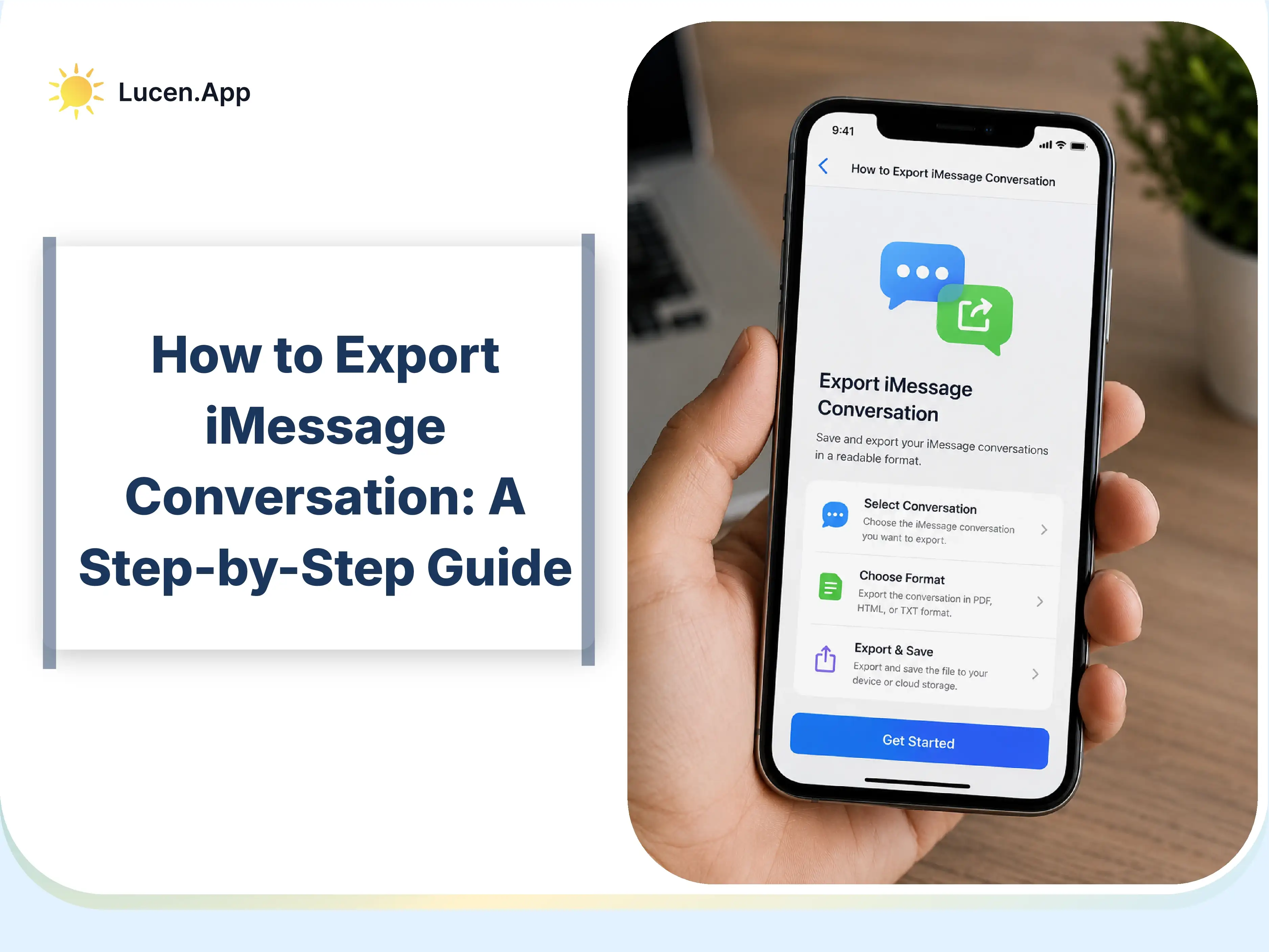
To export an iMessage conversation, use built-in iPhone methods like screenshots, screen recordings, or email for quick sharing, or sync messages to a Mac via iCloud to save and convert them into structured formats such as a PDF. Screenshots save visible message content as image files, while screen recording captures the entire iMessage conversation as a continuous video by scrolling through the chat, and email export lets you share selected messages as a text-based summary.
For a complete, structured export, sync iMessages to a Mac to access the full chat history, then save it as a formatted PDF using the Print option. Third-party tools such as iMazing provide advanced export options by retrieving backup data, allowing the selection of conversations, and converting them into formats such as PDF, CSV, or text, with metadata and timestamps. This combination of methods ensures flexible export, storage, and analysis of iMessage conversation data across devices.
How to Export iMessage Conversation on iPhone?
You can export iMessage conversations on iPhone using built-in methods such as screenshots, screen recording, or email. Screenshots save visible chats as images, screen recording captures the conversation as a video while scrolling, and email export lets you send selected messages as a text summary for storage or transfer.
How to Export iMessages from iPhone Using Screenshots?
To export iMessages using screenshots, open the Messages app, capture the conversation by pressing the side and volume up buttons simultaneously, then use Markup or Share to save the images. This method lets you manually export an iMessage conversation as images that can be stored, shared, or transferred as a digital backup.
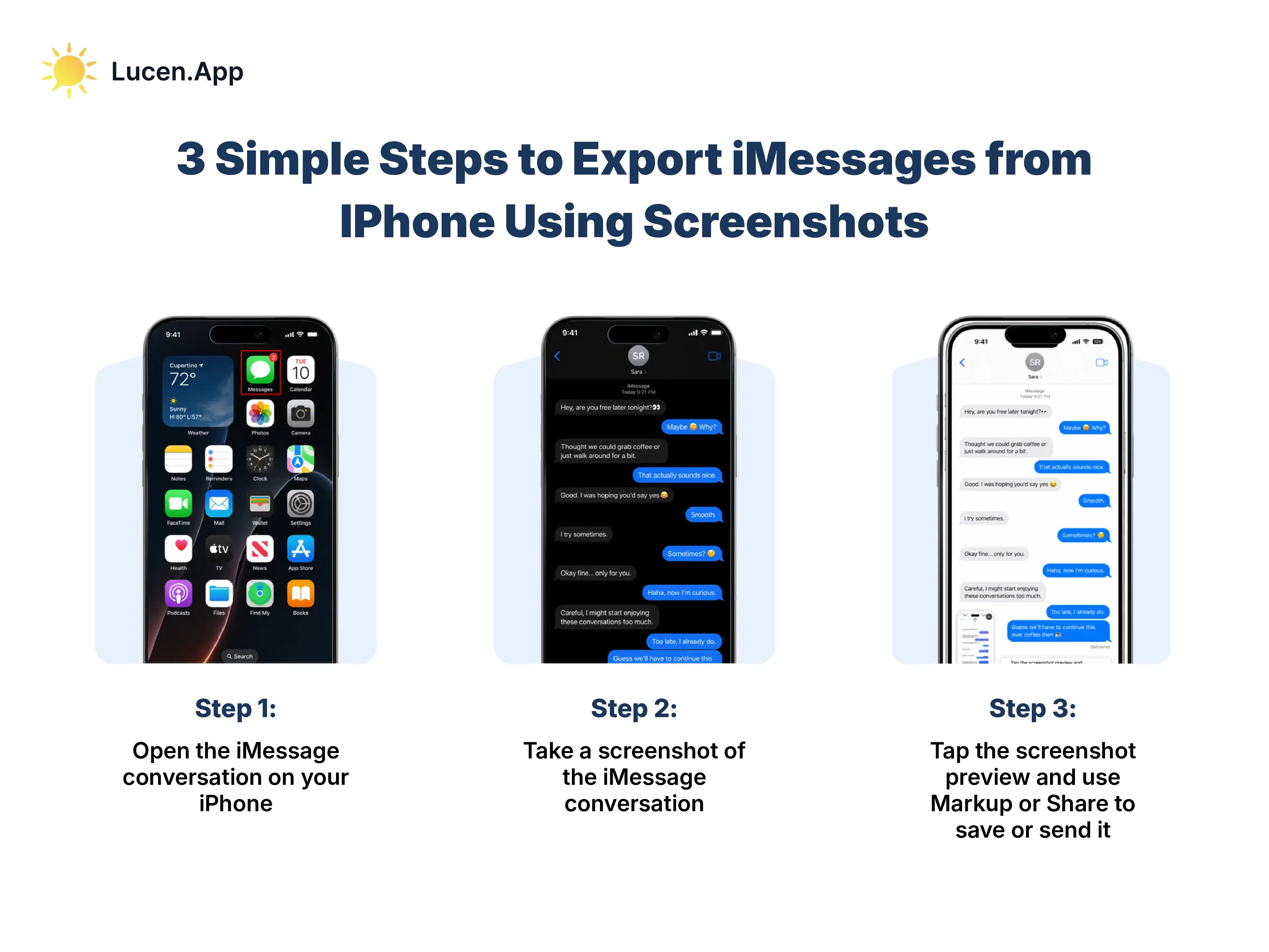
3 simple steps to export iMessages from iPhone using screenshots are:
Step 1: Open the iMessage conversation on your iPhone Navigate to the Messages app and select the specific contact or group iMessage thread you wish to capture. Scroll to the exact point in the iMessage conversation you want to save.
Step 2: Take a screenshot of the iMessage conversation Quickly press and release both the Side button (on the right) and the Volume Up button (on the left) at the same time to capture a screenshot. You can also take screenshots by using the Back Tap feature on iPhone (double-tap or triple-tap) the back of your device if Screenshot is assigned in Accessibility settings. You will see a camera flash on the screen and hear a shutter sound if your ringer is on.
Step 3: Tap the screenshot preview and use Markup or Share to save or send it A small thumbnail will appear in the bottom-right corner of your iPhone screen. Tap it to open the editing window. From here, you can use Markup to redact sensitive info or tap the Share icon (the square with an upward arrow) to send the image via email, save it to Photos, AirDrop to a computer, or upload it to a cloud service like iCloud Drive.
Note: For longer iMessage conversations, the user must repeat the process to export the full chat history.
How to Export iMessages from iPhone Using Screen Recording?
To export iMessages via screen recording, enable Screen Recording in Control Center, open the Messages app, and navigate to the desired conversation. Scroll from the start of the chat and move steadily through the entire conversation while recording to capture all messages and media in sequence.
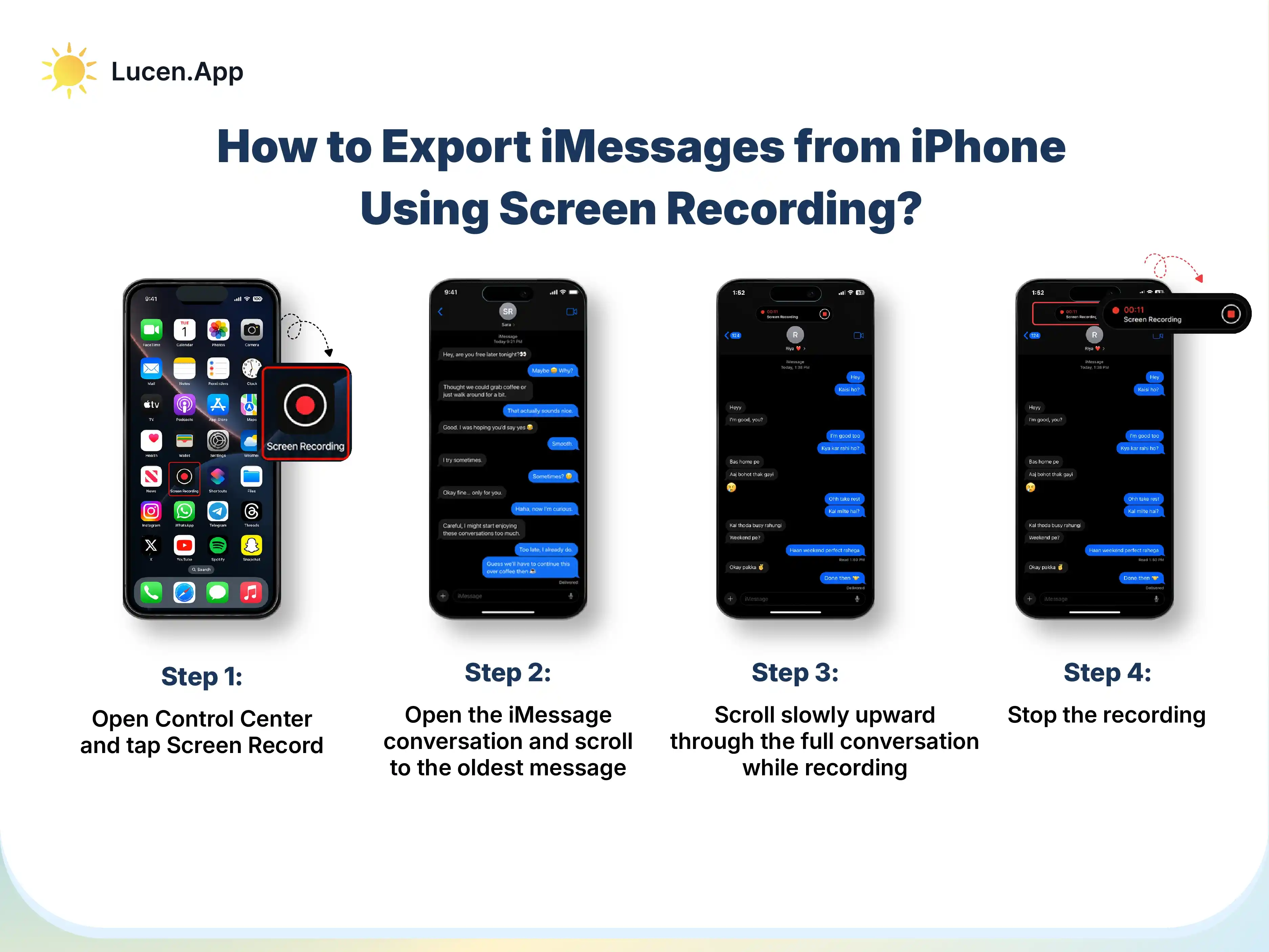
Steps to export iMessages using screen recording include:
Step 1: Open Control Center and tap Screen Record Swipe down from the top-right corner of your screen (or up from the bottom on older iPhone models) to access the Control Center. Tap the Screen Recording icon (a solid circle inside a ring). A three-second countdown will begin before the recording starts. Note: If you do not see the icon, go to Settings > Control Center and tap the green plus (+) next to Screen Recording to add it.
Step 2: Open the iMessage conversation and scroll to the oldest message While the screen recording is active (indicated by a red status bar or pill at the top of your screen), open the Messages app. Navigate to your desired iMessage chat, then scroll up to the start of the history you wish to export.
Step 3: Scroll slowly upward through the full conversation while recording Slowly scroll through the iMessages, maintaining a steady pace so the text remains legible in the final video. This scrolling capture ensures that every message bubble and media attachment is recorded in chronological order.
Step 4: Stop the recording Once you have reached the end of the iMessage conversation, tap the red status indicator at the top of your screen and select Stop. The recorded file will be automatically processed and saved to your Photos app, where you can access it, share it, or transfer the exported iMessage conversation to another device or computer.
How to Export iMessages from iPhone via Email?
To export iMessages via email, open the Messages app, select a conversation, press and hold a message bubble, tap More to enable selection mode, select the desired messages, tap the Forward icon, enter your email address, and tap Send. This method delivers the selected iMessage conversation as a text-based summary to your inbox for access, storage, or further use.
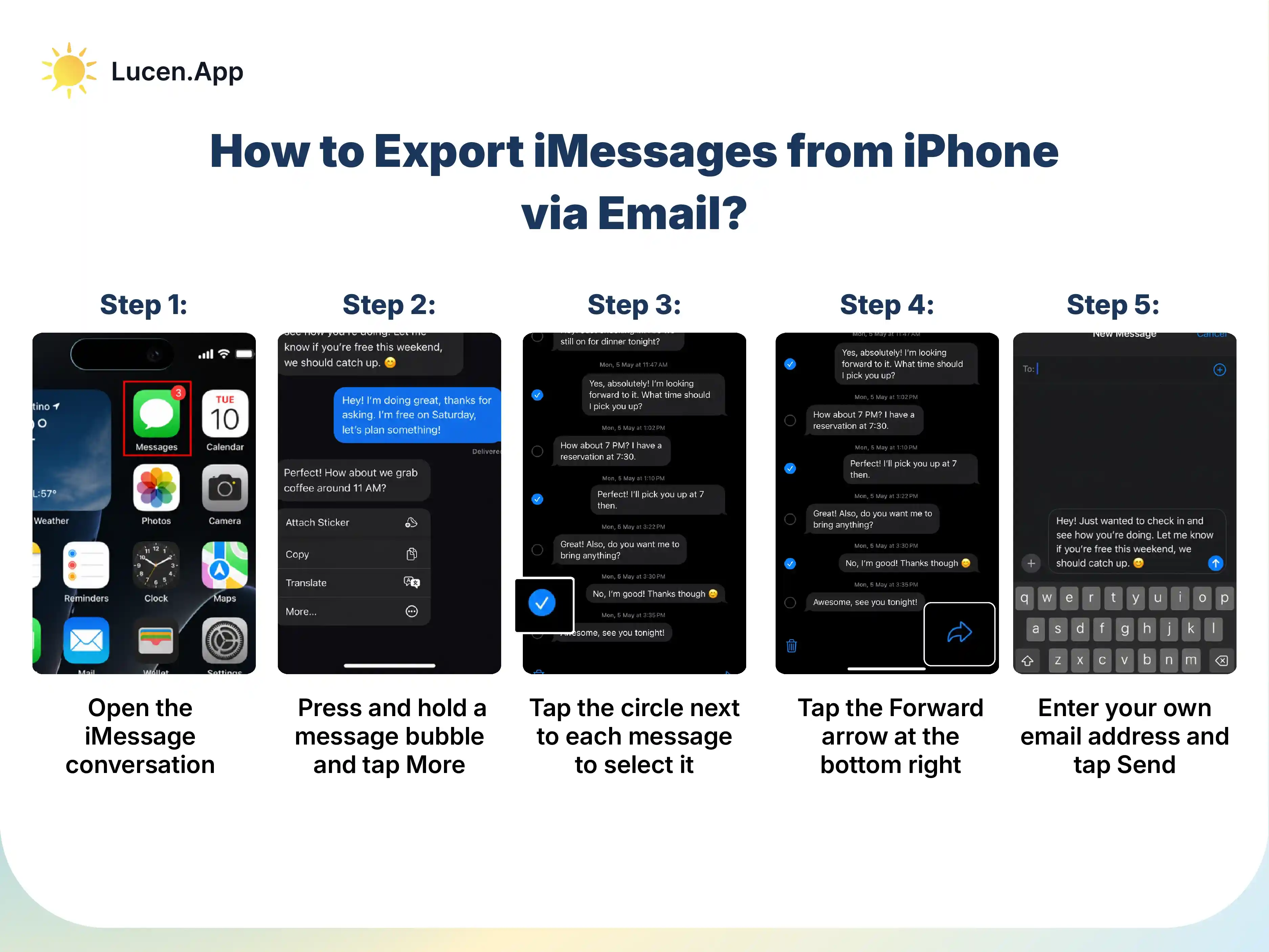
Step-by-step process to export iMessages via email:
Step 1: Open the iMessage conversation Launch the Messages app on your iPhone and select the desired iMessage conversation you want to export.
Step 2: Press and hold a message bubble and tap More Find any iMessage in the thread, and then perform a long press (press-and-hold) on that bubble until a floating menu appears. Tap More... at the bottom of the menu.
Step 3: Tap the circle next to each message to select it You will now see empty circles appearing to the left of every iMessage in the thread. Tap the circle next to each message you wish to include in your export. A blue checkmark will indicate that the desired iMessage is selected.
Step 4: Tap the Forward arrow at the bottom right Once you have selected all the relevant iMessages, tap the Forward icon (the curved blue arrow) located in the bottom-right corner of the screen. This will bundle all selected text into a new message draft.
Step 5: Enter your own email address and tap Send In the To: field of the new message, type your personal email address instead of a phone number. Once your email address appears, tap the Send arrow (green or blue). The iMessage conversation will arrive in your email inbox as a text-based summary of the selected messages.
How to Export iMessages from iPhone to Mac?
To export iMessages from an iPhone to a Mac, enable Messages in iCloud on both devices, sign in with the same Apple ID, and allow the conversation data to sync over Wi-Fi. This uploads iMessage data to iCloud and downloads the full chat history to the Mac, where you can access, save, and convert messages to PDF using the Print option for structured backup and sharing.
How to Sync iMessages from iPhone to Mac Using iCloud?
To sync iMessages from iPhone to Mac using iCloud, enable Messages in iCloud on your iPhone based on your iOS version, enable the same setting in the Mac Messages app, and allow both devices to connect and sync conversation data over Wi-Fi. This process uploads iMessage conversation data from the iPhone to iCloud and downloads it to the Mac, where the full chat history becomes accessible for viewing, saving, or exporting as a PDF or a formatted backup.
Step 1: Enable iMessages in iCloud on your iPhone To begin syncing, you need to activate iCloud message sync on your iPhone so the system can upload and manage iMessage conversation data. For this to work correctly, both your iPhone and Mac must be signed in with the same Apple ID, which ensures consistent data transfer across devices.
- Open Settings on your iPhone.
- Tap your name at the very top to enter your Apple ID settings.
- Tap iCloud.
Note: The exact navigation path may vary slightly based on your iOS version, but the overall setup flow remains consistent.
For iOS 17.2 or later:
- Under the Apps Using iCloud section, tap See All.
- Select Messages in iCloud.
- Toggle the switch for Use on this iPhone to the On position.
For iOS 16 to iOS 17.1:
- Under Apps Using iCloud, tap Show All.
- Select Messages.
- Toggle the switch for Sync this iPhone to the On position.
Step 2: Enable iMessages in iCloud on Your Mac After your iPhone starts uploading data, you need to configure your Mac to download and display the same iMessage conversation data. For this, follow the steps below:
- Open the Messages app on your Mac.
- Click Messages in the top menu bar (next to the Apple icon).
- Click Settings (or Preferences on older macOS versions).
- Click the iMessage tab at the top of the window.
- Check the box next to Enable Messages in iCloud.
Step 3: Wait for Messages to Sync Once both devices (iPhone and Mac) are configured, the system begins syncing data automatically. The iPhone uploads iMessage conversation data, and the Mac downloads the full iMessage conversation history, including text messages and media. To ensure this step continues without any interruptions:
- Keep both devices connected to Wi-Fi.
- Look for a status indicator in the Messages app on Mac, such as “Downloading Messages from iCloud.”
After syncing completes, you can access, save, convert, and export iMessages chat directly from your Mac, including options such as PDF creation and formatted backup data.
How to Export a Synced iMessage Conversation as PDF on Mac?
Exporting a synced iMessage conversation as a PDF on Mac starts by opening the Messages app, selecting the desired conversation, loading the full chat history, and using the Print option to convert it to a PDF. This process ensures that the complete iMessage conversation is captured as a formatted, readable document for storage, sharing, or further analysis.
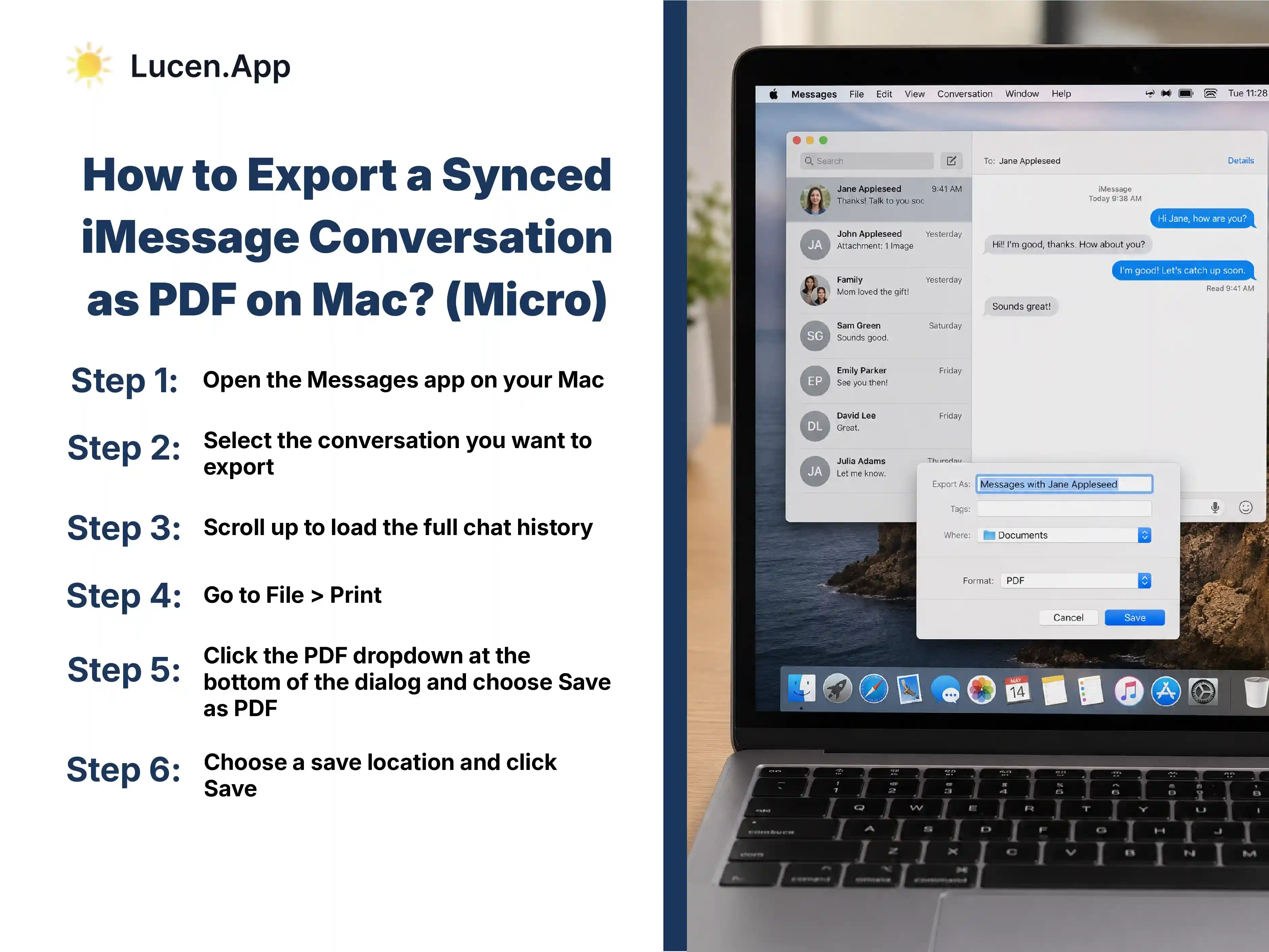
Step-by-step method to export a synced iMessage conversation as a PDF on Mac includes:
Step 1: Open the Messages app on your Mac Launch the Messages application from your Dock or Applications folder. Make sure you are signed in with the same Apple ID used on your iPhone so all data is present.
Step 2: Select the conversation you want to export Browse your iMessage chat list on the left side of the window, then click the specific contact or group thread you wish to save as a document.
Step 3: Scroll up to load the full chat history The Messages app loads only recent history to save memory, so scroll up through the iMessage conversation until you reach the starting point you need. If the iMessage chat is several years old, you may need to wait a few moments for older messages to download from iCloud as you scroll.
Step 4: Go to File > Print Once the desired history is displayed on your screen, click File in the top menu bar, then select Print from the dropdown menu. Alternatively, you can use the keyboard shortcut Command + P.
Step 5: Click the PDF dropdown at the bottom of the dialog and choose Save as PDF In the print preview window that appears, look for the PDF dropdown menu at the bottom center or bottom left of the dialog box. Click it and select the Save as PDF option.
Step 6: Choose a save location and click Save A standard save dialog will appear, where you enter a descriptive name for your file, select a destination folder, such as your Desktop or Documents, and click Save. Your iMessage thread is now stored as a permanent PDF file.
How to Export iMessages Using a Third-Party Tool?
To export iMessages as a PDF using a third-party tool or Mac utility, open the synced conversation in the Messages app, load the full chat history, and use the Print option to save it as a PDF. This creates a readable document that you can store, share, or analyze later.
How to Export iMessages Using iMazing?
To export iMessages using iMazing, connect your iPhone to a computer, access message data from a backup, and select specific conversations to export. The tool lets you choose formats such as PDF, CSV, or text, and configure metadata and timestamps before saving the backup file to your computer.
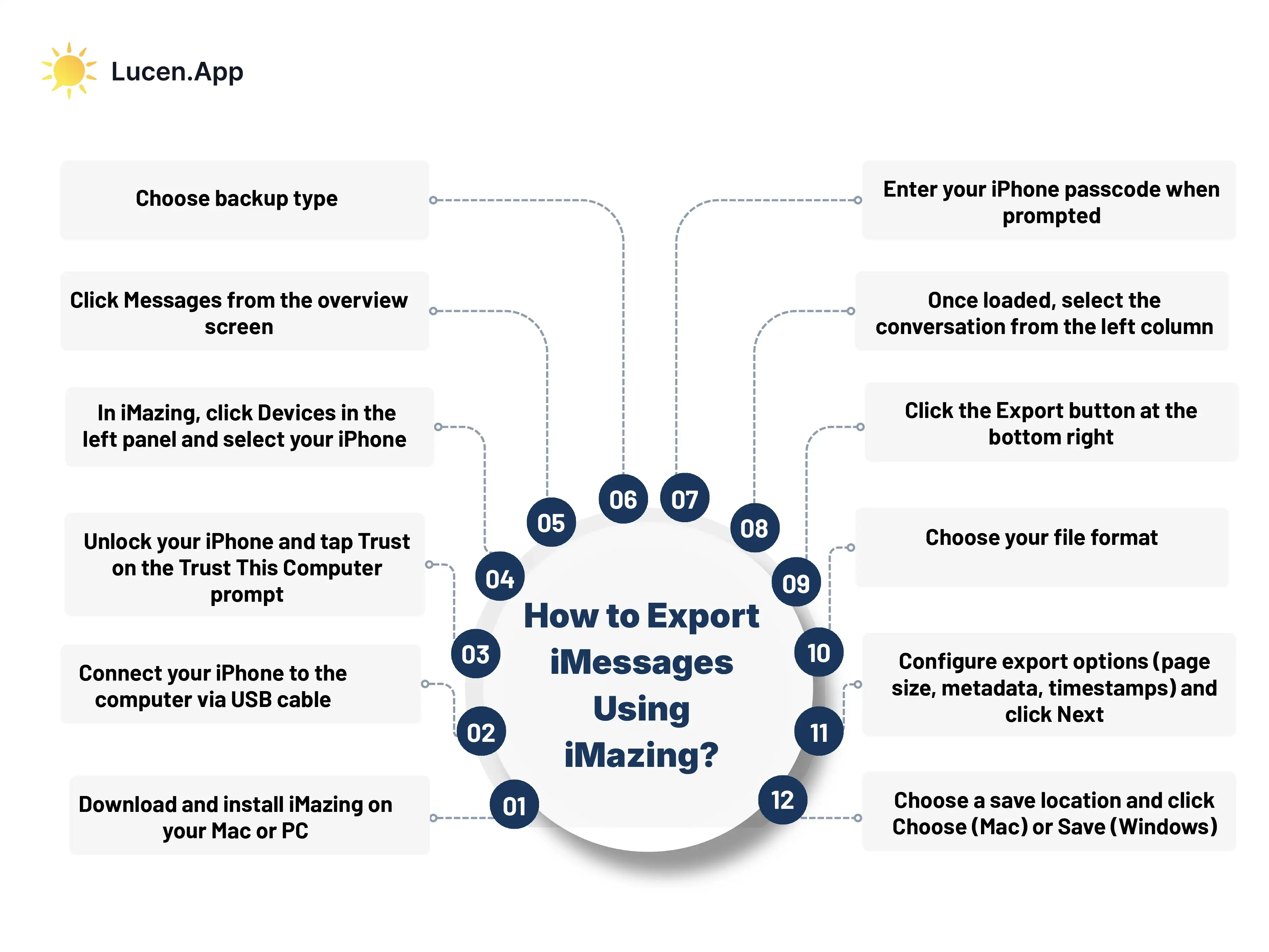
Below are the steps to export iMessages using iMazing:
Step 1: Download and install iMazing on your Mac or PC Visit the official iMazing website to download the installer for your operating system. Run the setup file and follow the on-screen prompts to complete the installation.
Step 2: Connect your iPhone to the computer via USB cable Use a reliable Lightning or USB-C cable to plug your iPhone into your computer. For the most stable data transfer, avoid using USB hubs if possible.
Step 3: Unlock your iPhone and tap Trust on the Trust This Computer prompt Check your iPhone screen for the Trust This Computer prompt. Tap Trust, then enter your device passcode to establish a secure handshake between your phone and the software.
Step 4: In iMazing, click Devices in the left panel and select your iPhone Look at the left-hand sidebar within the iMazing interface. Click Devices, then select your connected iPhone from the list to view its management options.
Step 5: Click Messages from the overview screen Find the Messages icon in the central grid of the device overview screen. Clicking this will start reading your message database.
Step 6: Choose backup type If prompted, select the option to perform a new backup or use an existing one. This ensures the software has access to the most recent version of your chat history.
Step 7: Enter your iPhone passcode when prompted To decrypt your message data for the export, iMazing will request your device passcode. Enter it on your iPhone to allow the software to proceed with the extraction.
Step 8: Once loaded, select the conversation from the left column Once the messages load, a list of all your contacts and groups will appear on the left. Click the specific conversation you want to export to preview its contents.
Step 9: Click the Export button at the bottom right Look for the action buttons at the bottom of the window. Click the Export button to begin the file generation process.
Step 10: Choose your file format Select your preferred output format from the available options: PDF (for readability), Excel/CSV (for data analysis), or Text (for simple archiving).
Step 11: Configure export options (page size, metadata, timestamps) and click Next Customize your document by adjusting settings for page size, margins, and metadata. You can choose to include or exclude contact names, timestamps, and attachment details before clicking Next.
Step 12: Choose a save location and click Choose (Mac) or Save (Windows) Navigate to the folder on your computer where you want to store the file. Click Choose (on Mac) or Save (on Windows) to finalize the export.
How to Analyze Your iMessage Conversations for Relationship Patterns?
Analyzing iMessage conversations for relationship patterns involves examining message data to identify communication styles, behavioral trends, and the consistency of interactions over time. This can be done through manual data export, AI-powered analysis tools such as an AI chat analyzer, or built-in Apple Intelligence. These methods help convert exported iMessage data into structured insights by evaluating response frequency, message tone, and engagement patterns across conversations.
3 methods to analyze iMessage data for relationship patterns include:
Manual Data Export (for Technical Users)
Manual data export provides direct access to iMessage conversation data via the system database, enabling detailed analysis and full control over structured backup data. This method supports the creation of histograms of messaging rates, tracking of response frequency, and evaluation of behavioral trends.
- Access the database path:
~/Library/Messages/chat.dbon a Mac - Use export tools such as imessage-exporter via terminal to convert data into text or CSV files
- Process the exported data using Python libraries such as pandas, seaborn, and matplotlib
AI-Powered Analysis (for Detailed Insights)
You can use AI tools to analyze iMessage conversation data to gain deeper insights into communication patterns such as patterns, emotional trends, and response behavior. An AI iMessage chat analyzer evaluates conversation structure, identifies emotional breakdowns, and measures reply speed across interactions.
- Feed exported text messages into ChatGPT or similar LLMs to analyze tone, sentiment, and relationship themes
- Use a dedicated AI chat analyzer for iMessage to import chat history and generate interactive visualizations
Note: ChatGPT can provide general insights based on input text, but the output may lack structured clarity and data security. In contrast, a dedicated AI iMessage chat analyzer delivers more secure, well-formatted, and consistent insights, making it better suited for detailed conversation analysis.
Built-in Apple Intelligence (iOS 18+)
Built-in Apple Intelligence, currently available only on iOS 18+, provides a simplified way to access summarized insights from iMessage conversations directly on your device. The system automatically processes message data and generates concise summaries that highlight key points and interaction patterns without requiring manual analysis. These summaries help convert iMessage conversations into actionable insights, allowing a clearer understanding of relationship patterns, communication styles, and behavioral trends over time.
To use built-in Apple intelligence, follow this process:
- Navigate to
Settings > Apps > Messages - Enable
Summarize Messages
What iMessage export types does Chat Analyzer support?
iMessage export types supported by Chat Analyzer include CSV, JSON, Excel, PDF file, Markdown (.md), HTML, and TXT, each designed to handle different levels of conversation data processing and analysis. Choosing the right format ensures that the AI chat analyzer for iMessage can effectively retrieve, interpret, and analyze iMessage conversation data based on the required level of detail and type of insights.
5 types of iMessage export types chat analyzer support are:
- PDF Files: Preferred for their readability and the way they preserve the visual order of messages, making it easy for the AI chat analyzer to parse the flow of dialogue.
- CSV and Excel: Ideal for deep data mining, these formats enable the analyzer to quickly sort messages by timestamp and sender ID for precise behavioral tracking.
- HTML: Excellent for preserving media attachments and metadata, providing the AI chat analyzer with more context about shared links and photos.
- TXT Files: While simpler, plain text files are widely supported for basic sentiment analysis and word-count tracking.
- JSON and Markdown (.md): Support structured, flexible data representation, helping the analyzer process conversation data for advanced parsing, formatting, and integration with analysis tools.