
To export a WhatsApp chat, open the conversation you want to save, open the chat settings menu, select Export Chat, choose whether to include media files, and then save or share the generated TXT or ZIP archive via Gmail or iCloud Drive. The exported file contains conversation history, timestamps, sender names, and optional media attachments that can be used for backup, documentation, transfer, printing, or WhatsApp chat analysis.
On Android, the export process is available through the three-dot menu inside a conversation, while iPhone users can access the Export Chat option from the Contact Info or Group Info page. WhatsApp Web does not currently provide a native export feature, so browser extensions such as WAExport are commonly used to download chats from desktop browsers. While exported TXT or ZIP files cannot usually be restored back into WhatsApp as active conversations, WhatsApp Transfer Chats, Google Drive backup, and iCloud restore features allow you to move complete message history between Android devices, iPhones, and cross-platform systems.
How to Export WhatsApp Chat on Android?
To export a WhatsApp chat on Android, open the chat, tap the three-dot menu, select More > Export Chat, choose whether to include media files, and then save or share the exported file via Gmail, Google Drive, or another storage platform. This process creates a readable text-based archive of your WhatsApp conversation that you can store, transfer, print, or analyze later.
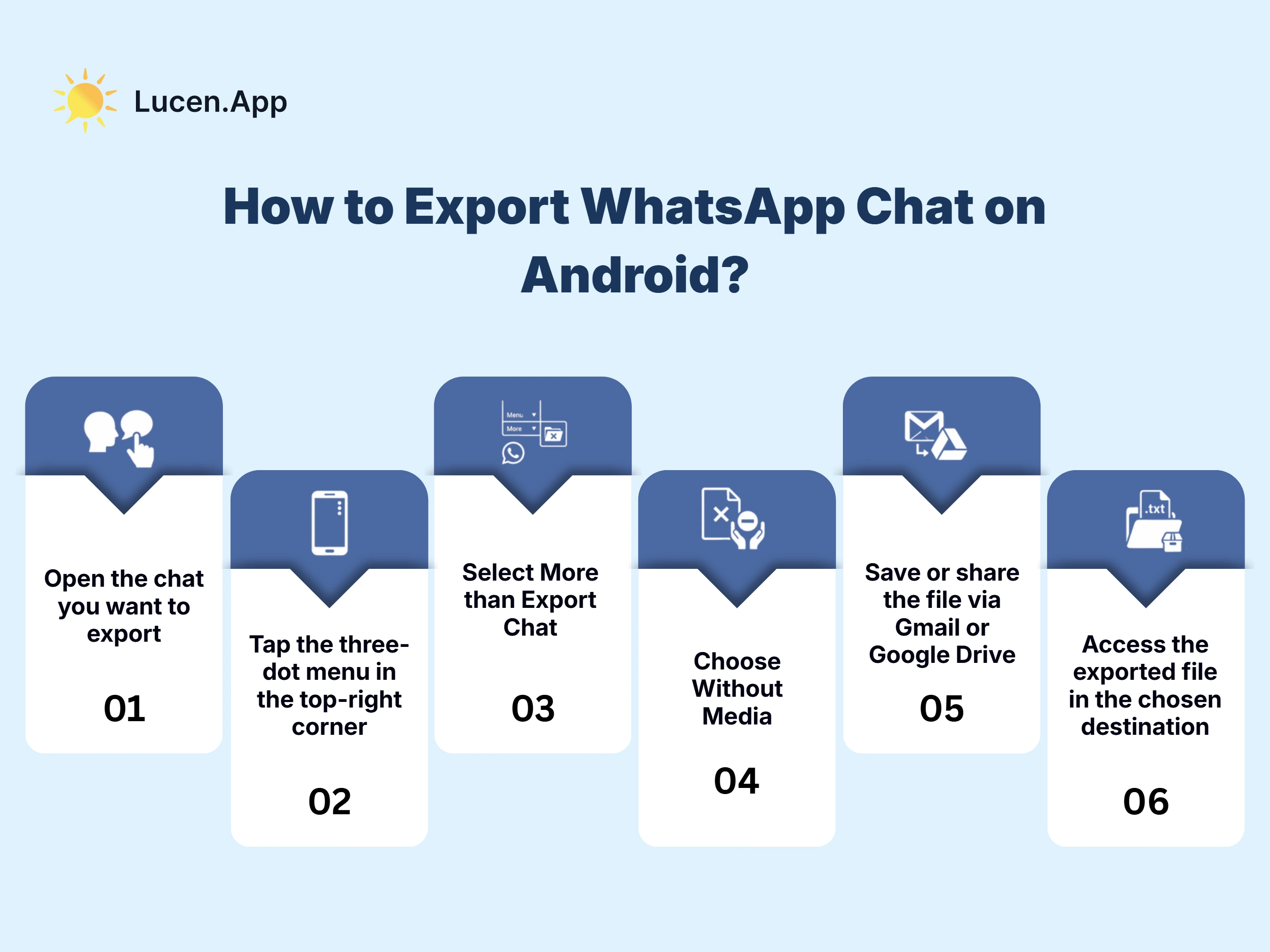
Step-by-step process to export WhatsApp chat on Android is:
Step 1: Open the chat you want to export
Launch WhatsApp on your Android smartphone and access the specific WhatsApp conversation you want to export. Here you can select an individual contact chat or a group conversation from the chat inbox.
Step 2: Tap the three-dot menu in the top-right corner
Inside the selected WhatsApp conversation, tap the three-dot menu icon located in the upper-right corner of the WhatsApp interface. This menu contains additional conversation settings and management tools, including the option to export WhatsApp chats as a file.
Step 3: Select More then Export Chat
From the drop-down menu, tap More at the bottom to reveal additional conversation options, and then select Export Chat from the secondary menu that appears. WhatsApp will now begin generating an export file containing your message history, timestamps, and conversation records.
Step 4: Choose Without Media
A prompt will appear asking if you would like to include media (photos, videos, etc.). Selecting Without Media ensures the WhatsApp chat export is a lightweight .txt file, which is much faster to generate and easier to send via email or document sharing.
[!NOTE] Include Media option exports attachments as well, but WhatsApp applies a smaller export limit of roughly 10,000 recent messages compared to roughly 40,000 text messages without media.
Step 5: Save or share the file via Gmail or Google Drive
After the export file is generated, the Android share sheet will automatically appear on your screen. From here, you can select apps such as Gmail, Google Drive, or another cloud storage and file-sharing platform. You can email the exported WhatsApp chat to yourself, upload it to Google Drive for backup storage, or save it locally on your Android device.
Step 6: Access the exported file in the chosen destination
Open the destination you selected during the export process to access your exported WhatsApp chat file. Depending on your export settings, WhatsApp generates either a plain text (.txt) file containing message history or a ZIP archive containing text conversations and media attachments.
How to Export WhatsApp Chat on iPhone?
To export a WhatsApp chat on iPhone, open the desired conversation, tap the contact or group name at the top, select Export Chat, choose whether to include media files, then save or share the exported chat using the iOS share sheet. Following this process creates a portable WhatsApp export file that you can store, transfer, print, or use for backup and documentation purposes.
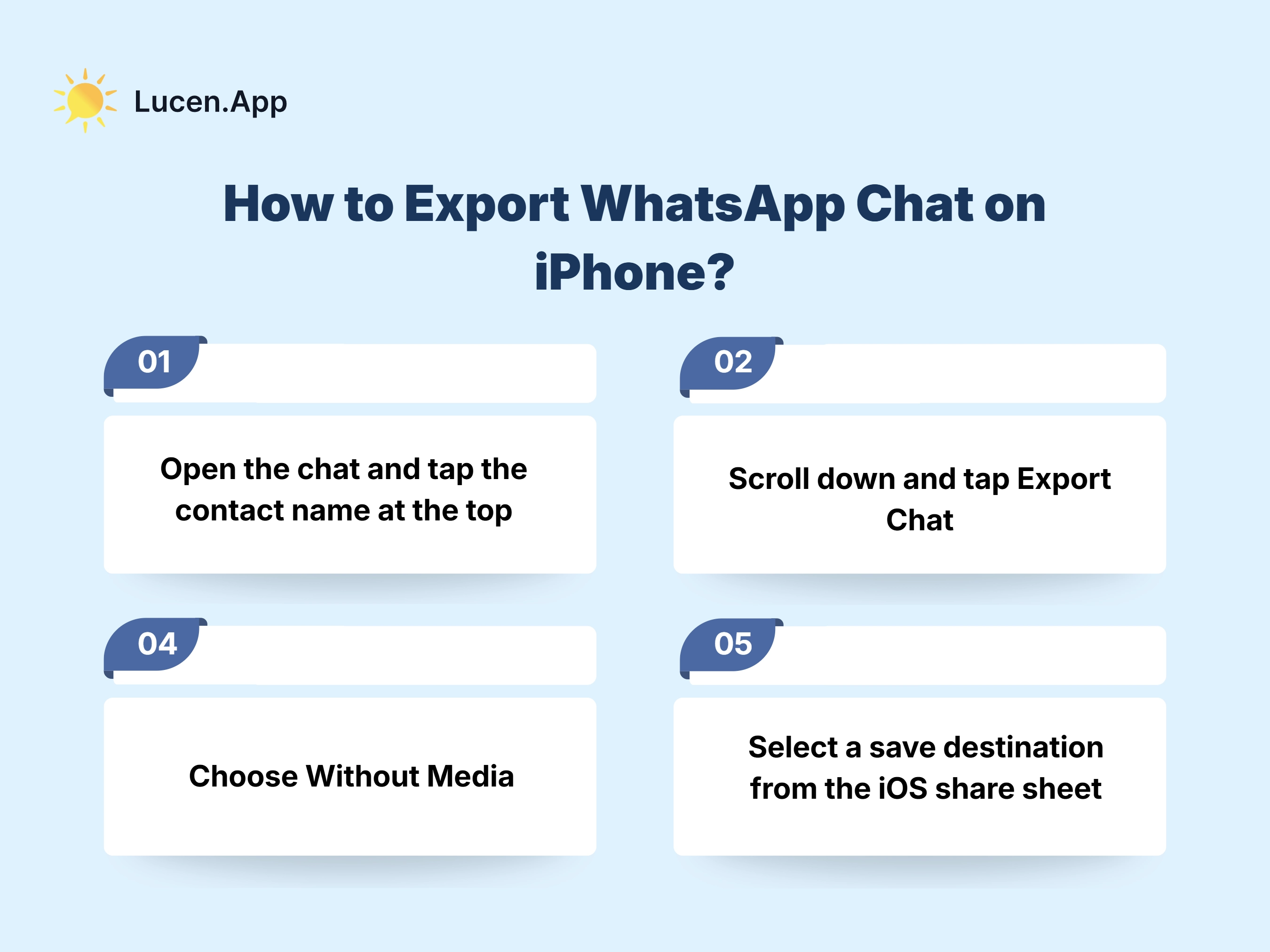
Below are the steps to export WhatsApp chat on iPhone:
Step 1: Open the chat and tap the contact name at the top
Launch WhatsApp on your iPhone and open the specific WhatsApp conversation you want to export. Once the chat opens, tap the contact or group name at the top of the screen to access the Contact Info or Group Info page.
Step 2: Scroll down and tap Export Chat
On the contact or group information screen, scroll down to the Export Chat option and tap it. WhatsApp will now begin preparing your conversation history, including text messages, timestamps, and sender information, for export as an archive file.
Step 3: Choose Without Media
A prompt will appear indicating two options: Without Media or Include Media. Select Without Media if you want a smaller, faster WhatsApp chat export that generates a lightweight plain text (.txt) file suitable for email sharing, cloud storage, or documentation.
Step 4: Select a save destination from the iOS share sheet
Once the export is processed, the iOS share sheet will automatically appear on your screen. From here, you can choose a destination such as Mail, Files, iCloud Drive, Google Drive, or another connected storage platform to save or share the exported WhatsApp chat.
How to Export WhatsApp Chat from WhatsApp Web?
Unlike the mobile apps, WhatsApp Web does not currently offer a native Export Chat button. To export WhatsApp conversations from a desktop browser, use a browser extension like WAexport to extract and generate a readable export file from the active WhatsApp Web session. This method allows you to save WhatsApp messages, archive conversations, or download chat history for documentation and analysis purposes.
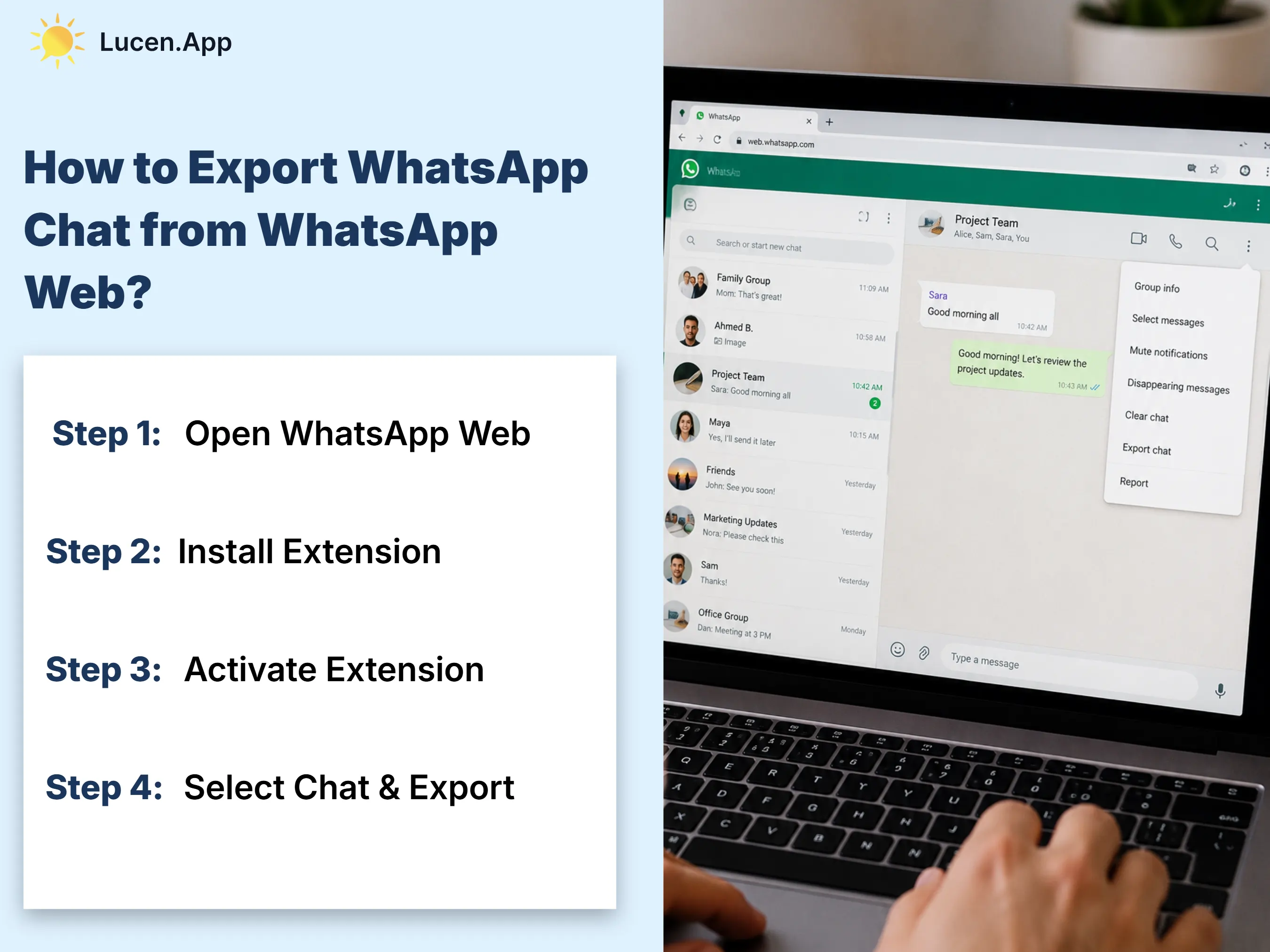
Follow the steps below to export WhatsApp chat from WhatsApp web:
Step 1: Open WhatsApp Web
Navigate to web.whatsapp.com on your desktop browser. If you have not already done so, link your device by scanning the QR code with your phone’s WhatsApp camera (Settings > Linked Devices).
Step 2: Install Extension
Visit the Chrome Web Store (or your browser's extension marketplace) and search for a trusted tool such as WAExport or WASheet. Click Add to Chrome to install the utility. These tools are designed to bridge the gap left by the lack of a native web export feature.
Step 3: Activate Extension
Click the Extensions icon (puzzle piece) in your browser’s toolbar and select your newly installed WhatsApp export tool. You may need to refresh your WhatsApp Web tab for the tool to sync with your active conversations.
Step 4: Select Chat & Export
Inside the extension’s interface, choose the specific contact or group chat you wish to save. Select your desired format (such as HTML for a readable chat-like view or Excel/CSV for data analysis) and click Download. The file will be saved directly to your computer’s "Downloads" folder.
How to Transfer WhatsApp Chat to Another Device?
To transfer WhatsApp chats to another device, you can use WhatsApp’s built-in Transfer Chats feature or restore a cloud backup from Google Drive or iCloud. The transfer method depends on whether you are moving chats between Android devices, iPhones, or different operating systems. During the process, WhatsApp transfers your message history, media attachments, group conversations, and account settings while preserving timestamps and conversation records.
Methods to transfer WhatsApp chats include:
Transfer WhatsApp chats directly on the same system (Android to Android/iOS to iOS)
To move data between two Android phones or two iPhones, use the Transfer Chat feature in Settings > Chats. This generates a QR code on your old device that you can scan with your new phone to transfer data directly over a local Wi-Fi connection, without needing a cloud backup.
Transfer WhatsApp chats using Google Drive or iCloud backup
You can also transfer WhatsApp chats using Google Drive or iCloud by creating a backup on your old device (Settings > Chats > Chat Backup) and then logging into the same Google or Apple account on the new device. During the setup process on the new phone, WhatsApp will detect the backup and ask if you wish to restore it.
Transfer WhatsApp chats between Android and iPhone
When transferring WhatsApp chats from Android to iPhone, use Apple’s Move to iOS app during the initial iPhone setup. For iPhone-to-Android migration, use a USB-C-to-Lightning cable during the Switch to Android setup. Both methods securely transfer WhatsApp conversations, media files, account information, and chat history while preserving message structure and timestamps on the new device.
Transfer WhatsApp chats using third-party transfer software
In cases where native tools fail or if you need to move data between non-standard versions of the app, professional desktop software (such as iTransor or Tenorshare) can be used. These tools require connecting both phones to a computer via USB to perform a direct data migration.
How to Restore Exported WhatsApp Chats on Another Device?
You can restore exported WhatsApp chats on another device by using WhatsApp backup and transfer features instead of exported chat files. Since WhatsApp exported chats cannot usually be restored back into the WhatsApp app as active conversations because the export process generates a readable .txt or .zip archive instead of a full backup database, Backup and Restore or Direct Transfer methods are the only possible methods.
Steps to access and view exported WhatsApp chats on another device include:
Step 1: Access the Exported File on the New Device
If you exported a WhatsApp chat via email or cloud storage, download the .txt or .zip file to your new device. Open it in any document viewer (such as Google Docs or Notes) to read the conversation history in a chronological, transcript-like format.
Step 2: Use Chat Transfer for a Live Move
To restore WhatsApp chats so they are interactive on the new phone, open WhatsApp on your old device and go to Settings > Chats > Transfer Chats. Scan the QR code shown on your new device to move the entire database without using a .txt file.
Step 3: Restore via Cloud Backup (Google Drive/iCloud)
Ensure your old phone has a recent WhatsApp chat backup (Settings > Chats > Chat Backup). On your new device, install WhatsApp and verify the same phone number. When prompted, select Restore to restore your entire history from the cloud to the app interface.
Step 4: Use Third-Party Analyzers for Restoration-Style Viewing
If your goal is to view the exported .txt file as it appears in the original WhatsApp interface, upload it to a chat analyzer tool. These tools parse the text data and reconstruct the visual bubbles, making the exported file much easier to read and navigate.
Can You Export WhatsApp Chat on Desktop?
Yes, you can export WhatsApp chats on a desktop by using third-party browser extensions like WAExport or chat export tools like iMazing, since WhatsApp Desktop and WhatsApp Web do not currently provide a native Export Chat feature like the mobile apps. These extensions and third-party tools can extract WhatsApp message history from an active WhatsApp Web session and generate downloadable TXT, CSV, HTML, or JSON files that contain conversations, timestamps, sender names, and media references for backup, documentation, storage, or WhatsApp chat analysis.
What Does an Exported WhatsApp Chat Contain?
An exported WhatsApp chat contains message history, sender information, timestamps, media references, and conversation records, all organized in a readable, text-based format. Depending on whether you selected the Include Media or Without Media option during export, the exported WhatsApp chat may contain additional attachments such as photos, videos, documents, or voice notes inside a ZIP archive.
Common components included in an exported WhatsApp chat include:
- Timestamps: Every WhatsApp message is logged with its exact date and time of transmission (e.g., 22/05/2026, 14:30). This allows for precise chronological tracking of the conversation flow.
- Sender Identifiers: The exported WhatsApp file clearly labels who sent each message using their saved contact name or their phone number if they are not in your address book (e.g., John Doe: Hello!).
- Textual Content: It is the core of the export, containing the full text of every WhatsApp message sent and received, including emojis and links.
- System Messages: The exported WhatsApp chat includes automated logs generated by the app, such as when a contact changed their phone number, when a group's settings were updated, or when a voice or video call was missed.
- Media Placeholders (Text-only mode): If you export WhatsApp chat without media, the text file will include placeholders such as
<Media omitted>or (file attached) to indicate where a photo, video, or voice note originally appeared in the thread. - Multimedia Files (Media-included mode): When you choose to include media, the exported WhatsApp chat will include the original high-resolution photos, videos, GIFs, voice notes, and documents (PDFs, .docx) shared during the conversation.
What Can You Do With an Exported WhatsApp Chat?
You can use an exported WhatsApp chat for conversation analysis, personal backup storage, documentation, record keeping, and long-term archive management. Since the exported WhatsApp file preserves message history, timestamps, sender names, and conversation structure in a readable format, it becomes useful for both personal and professional purposes outside the WhatsApp app.
Upload it to an AI chat analyzer for relationship insights
You can upload an exported WhatsApp chat to an AI chat analyzer tool to examine communication behavior, response patterns, emotional trends, and interaction frequency between participants. These AI chat analyzers can identify messaging habits such as who most often starts conversations, average reply time, dominant sender activity, shifts in emotional tone, keyword repetition, relationship insights, conversation balance, attachment frequency, and periods of active communication.
Save it as a personal backup
An exported WhatsApp chat can serve as a personal backup for long-term storage, future reference, and the secure preservation of conversations. Exported TXT or ZIP files allow you to store important chats, such as family conversations, work discussions, travel plans, shared documents, or memorable message history, outside the WhatsApp platform without depending entirely on cloud backups, app storage, or device availability.
Use it as a legal or documentation record
Exported WhatsApp chats can also serve as documentation for professional, legal, academic, or business purposes because the exported file preserves timestamps, sender names, and the conversation history in chronological order. Many people store exported WhatsApp conversations as evidence records, communication references, transaction history logs, customer interaction archives, or project documentation for future review and verification.
Where Can You Analyze an Exported WhatsApp Chat?
You can analyze an exported WhatsApp chat using a WhatsApp chat analyzer tool that processes TXT or ZIP export files and converts conversation history into communication insights, behavioral patterns, and relationship analytics. WhatsApp chat analyzer examines attributes such as message frequency, reply time, active hours, emotional tone, conversation balance, keyword repetition, emoji usage, and interaction consistency to identify how participants communicate over time. Depending on the platform, you may see insights such as who most often initiates conversations, average response delays, engagement levels, busiest chat periods, sentiment distribution, and one-sided messaging patterns.






_result.webp&w=3840&q=75&dpl=dpl_DmcYM65DKNssHHvask5qvpsyRCms)